Aug 20, 2026FAQs
How to Fix "SD Card Error" on Your Dash Cam
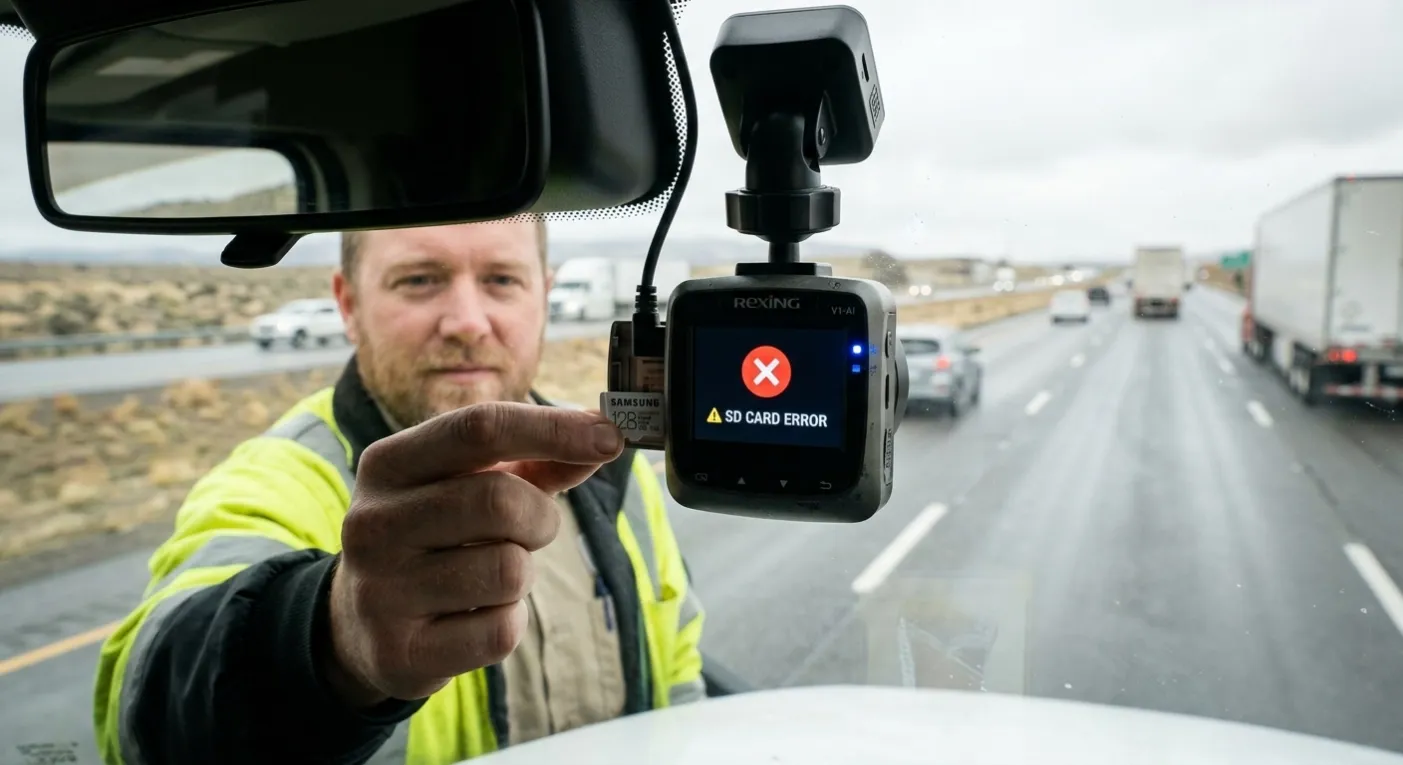
Getting an "SD Card Error" on your dash cam usually points to a issue with the microSD card itself rather than a camera hardware failure.
How to Fix "SD Card Error" on Your Dash Cam
Getting an "SD Card Error" on your dash cam usually points to a issue with the microSD card itself rather than a camera hardware failure. Because dash cams operate under harsh conditions—continuous high-bitrate writing, extreme temperatures, and constant power cycling—memory cards face far more stress than in standard digital cameras.
Here are the primary causes of SD card errors and how to resolve them.
Common Causes & Solutions
1. Incompatible or Low-Grade MicroSD Card
Dash cams require high sustained write speeds. Standard consumer cards (often used in phones or handheld cameras) fail quickly under continuous loop recording.
- The Fix: Ensure your card is rated at least Class 10 / U3 / V30. For 2K or 4K multi-channel recording, always use a High Endurance or Max Endurance microSD card designed for continuous video writing. Avoid Ultra-low-cost or unbranded cards.
2. Storage Maxed Out by Locked "Emergency" Files
While loop recording automatically overwrites old footage, events triggered by the G-sensor (impacts, hard braking, or bad road bumps) are saved as protected files. Over time, these locked clips accumulate and exhaust card capacity.
- The Fix: Manually review the card, export critical collision footage, and clear out locked folders. Adjust your dash cam's G-sensor sensitivity if it locks files too frequently during normal driving.
3. File System Corruption
Unplugging the card while the camera is powered, sudden loss of vehicle power, or switching the card between different operating systems can corrupt the FAT32/exFAT file structure.
- The Fix: Back up essential video clips, then format the card directly inside the dash cam settings menu—not on a PC. Formatting inside the camera ensures the file system matches the device's native allocation unit size.
4. Memory Card Degradation (NAND Wear)
MicroSD cards have a finite number of write/erase cycles. After 12–24 months of heavy daily driving, flash memory cells degrade, developing bad sectors that cause write failures.
- The Fix: If formatting fails or errors recur frequently, the card has reached its end of life. Replace it with a new High-Endurance card.
5. Hardware Slot Issues or Outdated Firmware
Dirt in the slot, bent pins, or outdated device firmware can disrupt card recognition.
- The Fix: Power off the dash cam, clean the card contacts with isopropyl alcohol, and re-insert securely. Check the manufacturer's site to update your dash cam firmware to the latest version.
Quick Troubleshooting Checklist
Problem | Immediate Action |
Card Not Recognized | Format card in-camera -> Test card on PC -> Clean contacts |
Random Stop Recording | Check card write speed (Must be U3/V30) -> Upgrade to High-Endurance card |
Card Full Alert | Lower G-Sensor sensitivity -> Format card to clear locked event files |
Best Practices for Long-Term Reliability
- Format Monthly: Routine in-camera formatting clears fragmentation and keeps the card running smoothly.
- Never Hot-Swap: Always power down the dash cam before inserting or removing the microSD card.
- Match Supported Capacity: Never exceed the maximum storage limit (e.g., 128GB / 256GB) specified by the dash cam manufacturer.