Oct 30, 2026FAQs
How to Set Up a Dash Cam for the First Time: A Complete Beginner's Guide
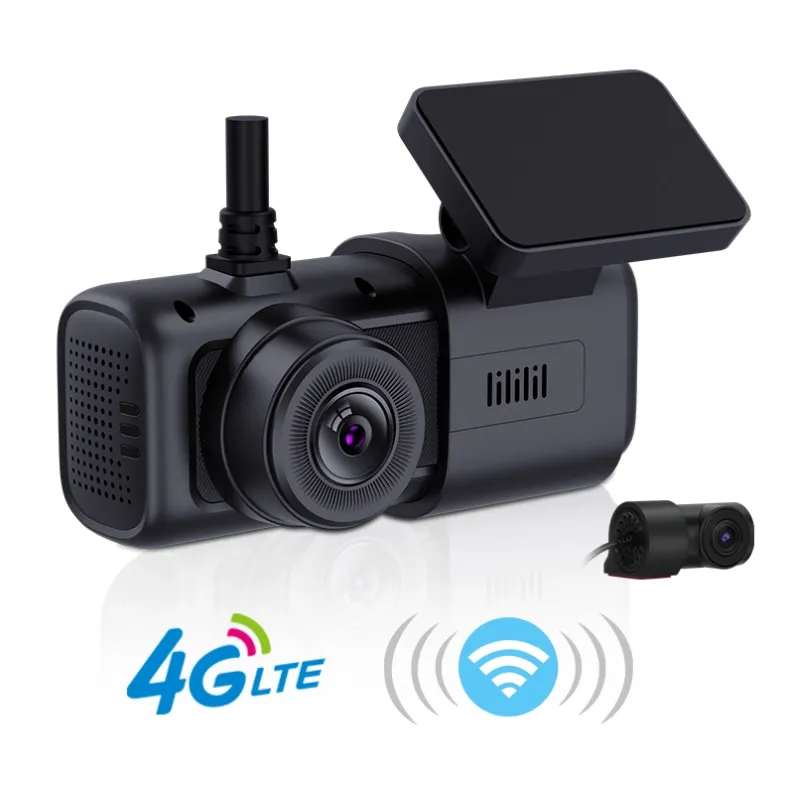
Whether you are using a basic front-facing dash cam or an advanced 4G dual-channel system, proper installation and configuration are essential for reliable recording and vehicle protection.
How to Set Up a Dash Cam for the First Time: A Complete Beginner's Guide
Installing a dash cam for the first time may seem complicated, but the process is usually straightforward. Whether you are using a basic front-facing dash cam or an advanced 4G dual-channel system, proper installation and configuration are essential for reliable recording and vehicle protection. In this guide, we will explain how to set up a dash cam step by step.
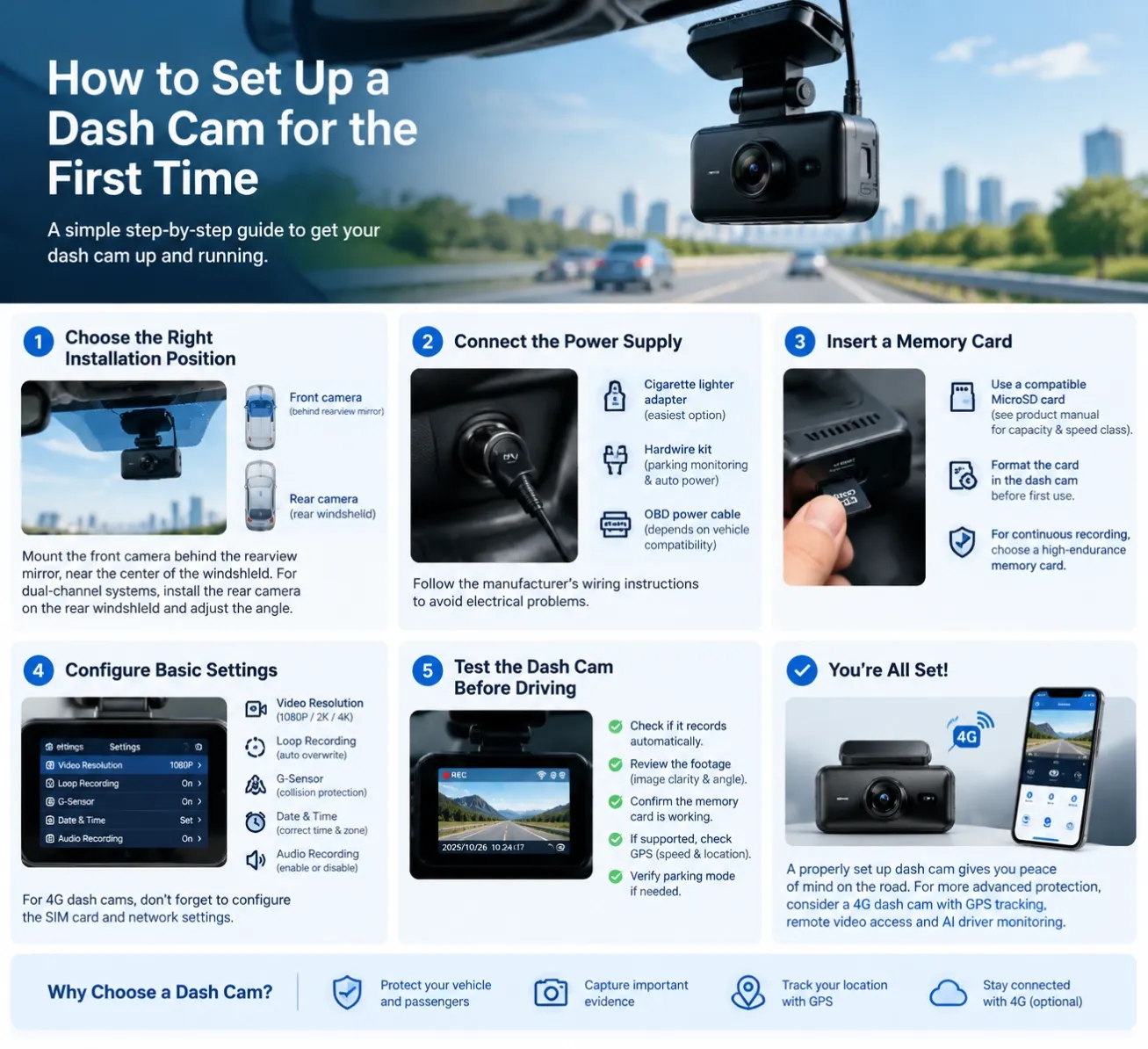
1. Choose the Right Installation Position
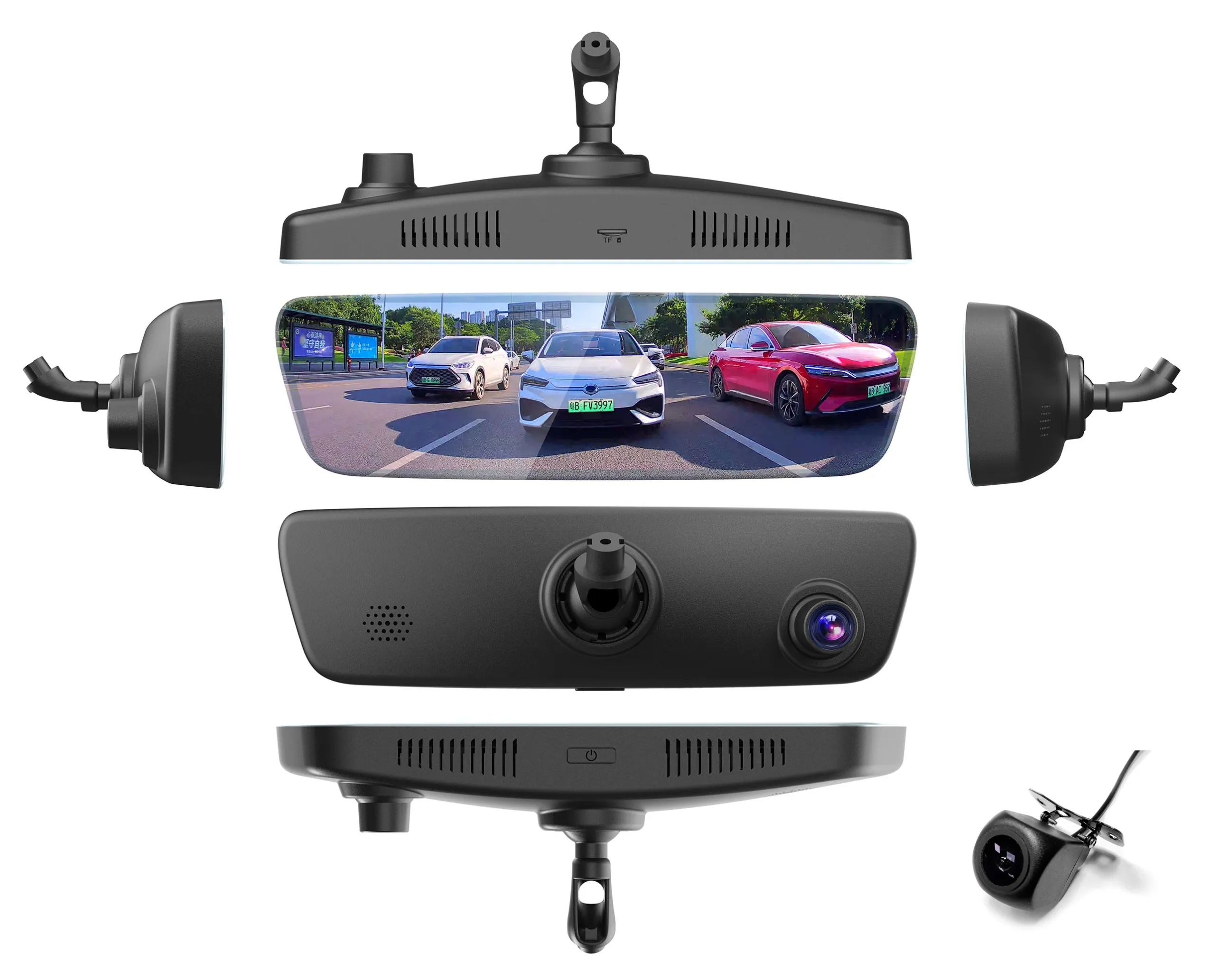
The first step is finding the best position for your dash cam. For a front-facing camera, the recommended location is usually behind the rearview mirror, near the center of the windshield.
This position provides a wide view of the road while minimizing obstruction to the driver's vision. Make sure the camera lens is clean and has an unobstructed view of the road.
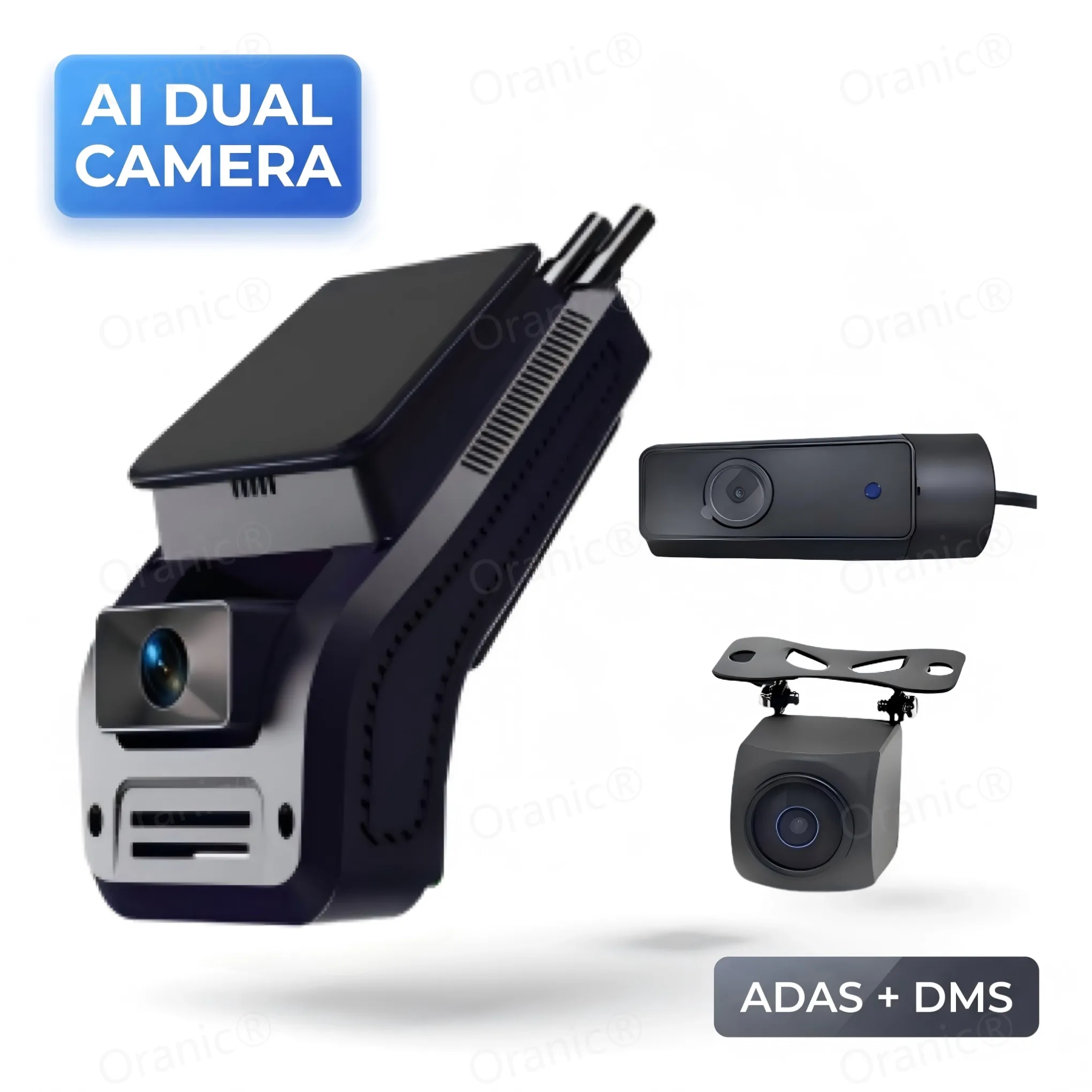
If you are installing a dual-channel dash cam, mount the rear camera on the rear windshield and adjust its angle to capture traffic behind your vehicle.
2. Connect the Power Supply
Most dash cams use one of three power options:
- Cigarette lighter adapter: The easiest option for beginners. Simply connect the power cable to the vehicle's 12V socket.
- Hardwire kit: Connects the dash cam to the vehicle's fuse box. It can support parking monitoring and automatic power management.
- OBD power cable: Uses the vehicle's OBD port to provide power, depending on vehicle and device compatibility.
Always follow the manufacturer's wiring instructions to avoid electrical problems.
3. Insert a Memory Card
Before using your dash cam, insert a compatible MicroSD card. Check the recommended capacity and speed class in the product manual.
Format the memory card through the dash cam's settings before the first use. This helps ensure compatibility and reduces potential recording errors.
For frequent driving or fleet applications, choose a high-endurance memory card designed for continuous video recording.
4. Configure Basic Settings
Once the device is powered on, configure the essential settings:
- Video Resolution: Select 1080P, 2K, or 4K according to your recording requirements.
- Loop Recording: Enable this feature so older footage is automatically overwritten when storage is full.
- G-Sensor: Enable collision detection to protect important video files.
- Date and Time: Set the correct date, time, and time zone.
- Audio Recording: Enable or disable microphone recording according to your privacy requirements.
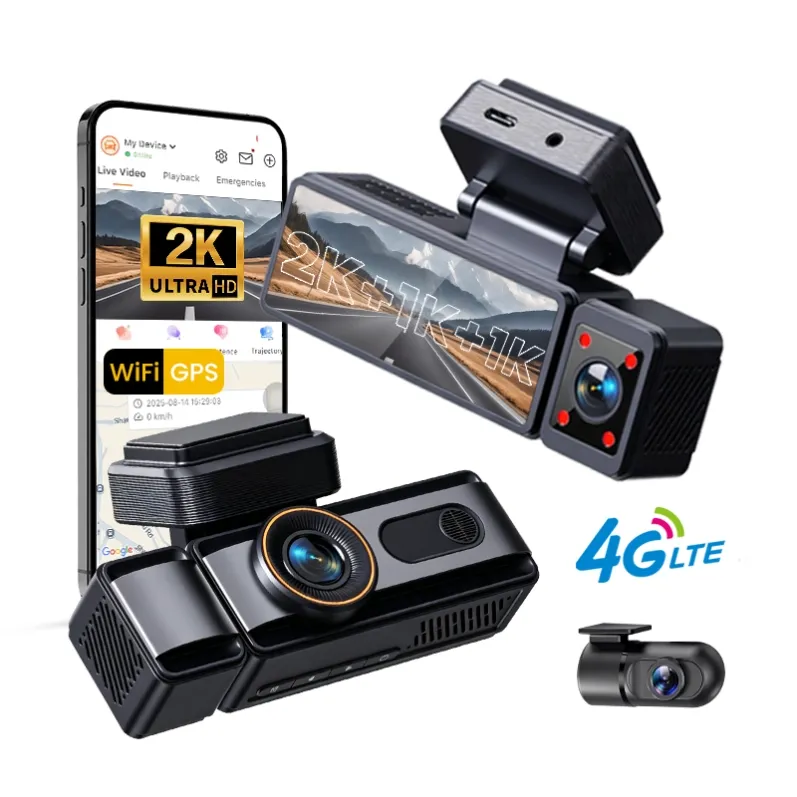
For 4G dash cams, remember to configure the SIM card and network settings if remote access is required.
5. Test the Dash Cam Before Driving
After completing the installation, turn on the vehicle and check whether the dash cam starts recording automatically.
Review the recorded footage to confirm that the image is clear, the camera angle is correct, and the memory card is working properly. If your device supports GPS, check whether speed and location information are being recorded.
For parking monitoring, verify that the power connection and parking mode settings work as expected.
Conclusion
Setting up a dash cam for the first time is easy when you follow the correct steps. Proper positioning, reliable power connections, a compatible memory card, and suitable recording settings will help ensure consistent performance.
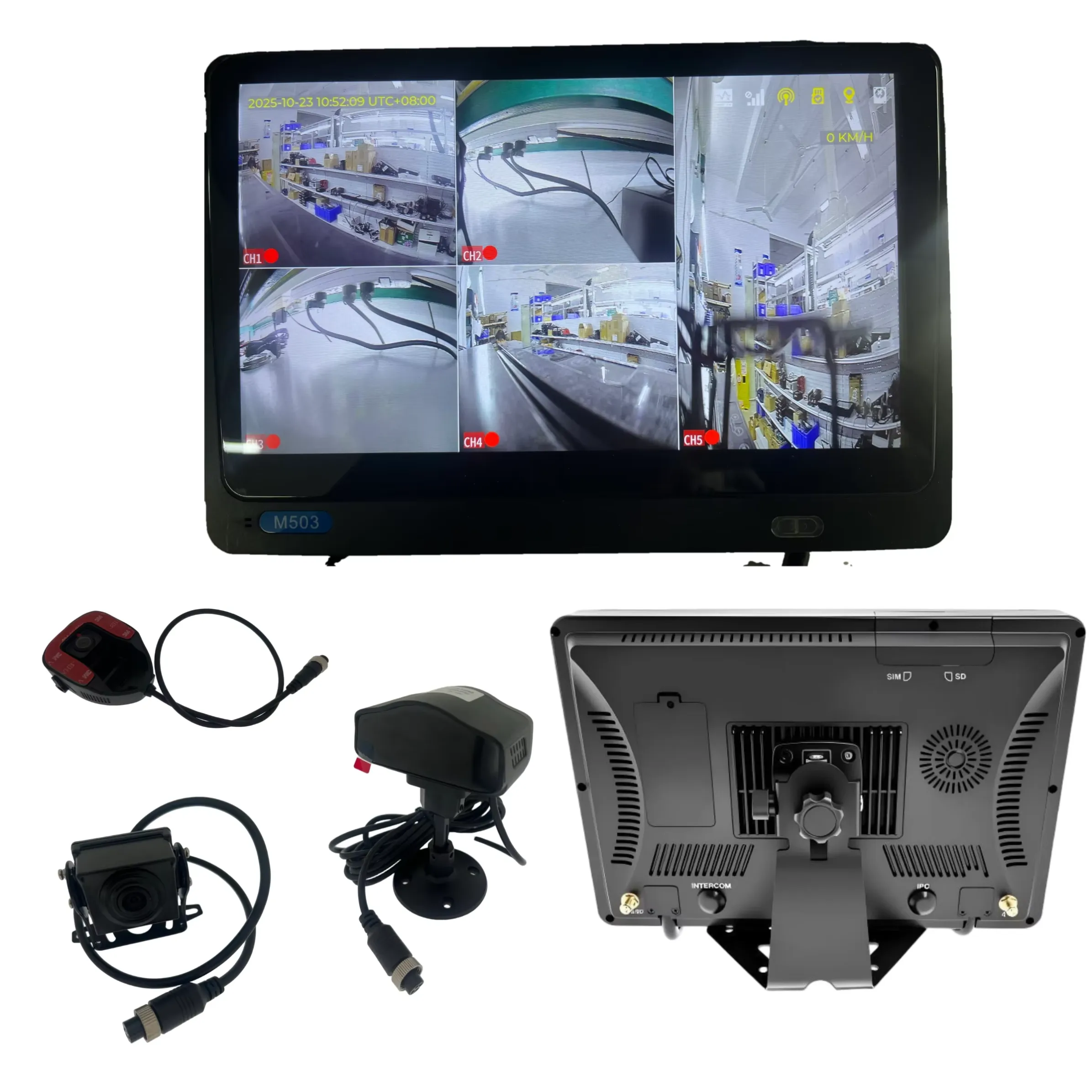
For drivers and fleet operators looking for more advanced protection, a 4G dash cam with GPS tracking, remote video access, and AI driver monitoring can provide additional visibility and control.