Jul 3, 2026FAQs
How to View Dashcam Clips: A Simple Guide for Beginners
How to View Dashcam Clips: A Simple Guide for Beginners
Knowing how to view dashcam clips is essential whether you need accident evidence, want to save a travel video, or simply check if your dashcam is working properly. Most dashcams offer several ways to access footage: through the mobile app, by inserting the microSD card into computer, or through cloud platforms. Below is a clear, compact guide that works for almost all dashcam models.
1.Viewing clips with a mobile app
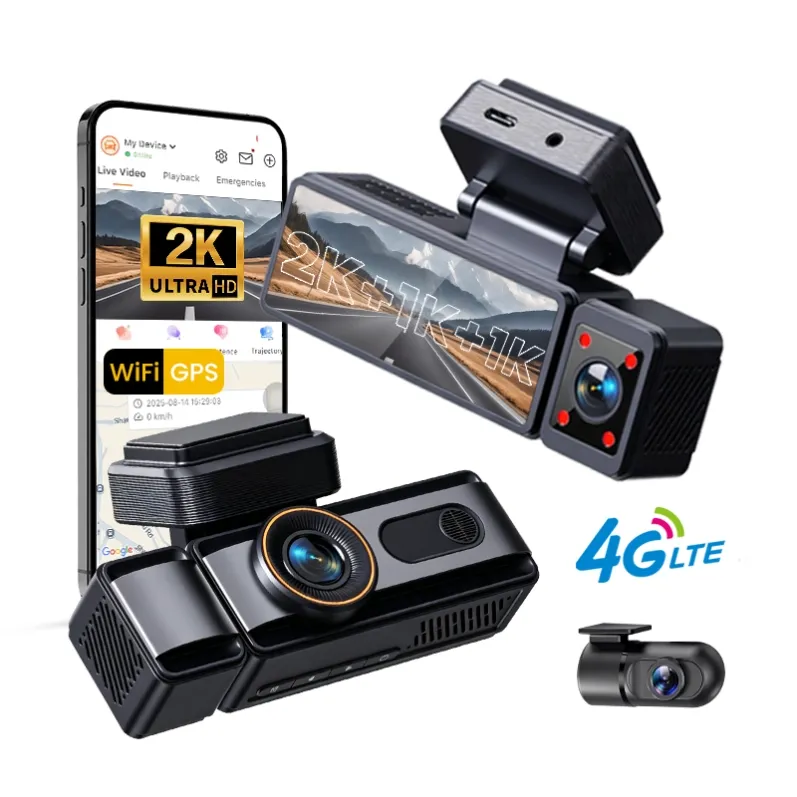
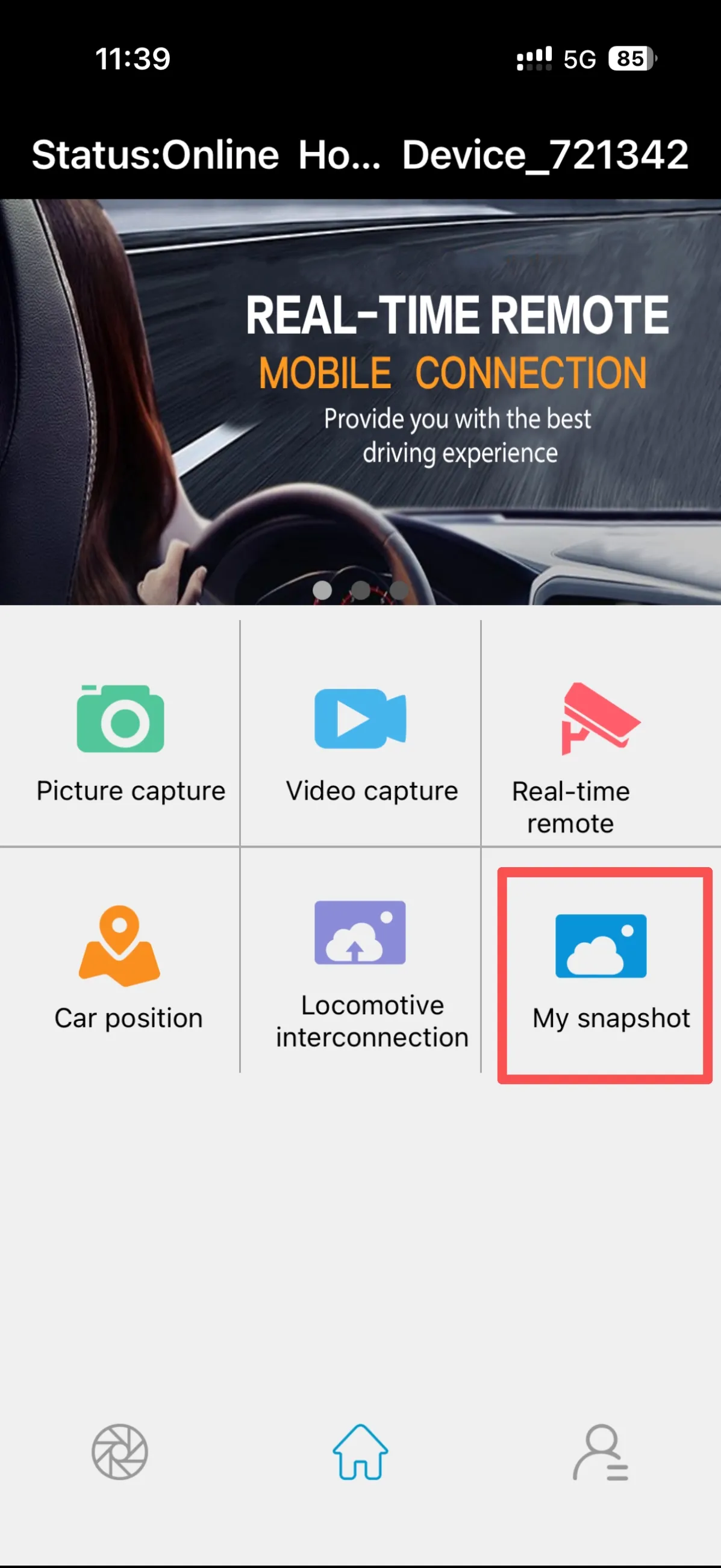
Most modern dashcams allow you to connect your phone via WiFi. Turn on the dashcam’s WiFi, connect your phone to the hotspot, open the official app (such as RoadCam, Carkeeper, Viidure, CarAssist), and enter the “Playback” or “Gallery” section. From there, you can watch recorded videos, download important clips, check locked emergency files, and manage storage. This is the fastest and most convenient and efficient method.
2. Viewing clips by removing the SD card
Power off the dashcam, take out the microSD card, and insert it into your computer (using a card reader if needed). You will see folders for normal loop recording, event files, and parking-mode clips. Open them with any media player such as VLC, Windows Media Player or Potplayer. If video quality looks unclear, make sure you’re using a U3 or V30-rated microSD card.
3. Viewing clips directly on the dashcam
Some dashcams include a small display that allows quick roadside review. Simply enter the “Playback” menu on the device, choose the date and clip you need, and press play. It’s useful when you want immediate verification without using your phone.
4. Viewing clips through cloud storage
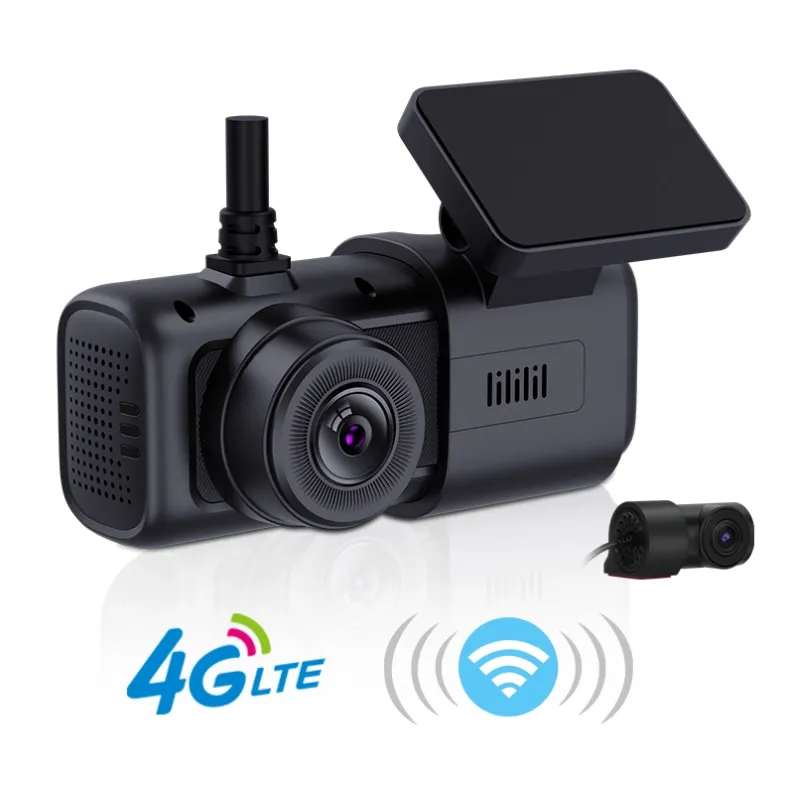
Higher-end dashcams with 4G or WiFi cloud service can automatically upload emergency and parking-mode recordings. You can log in to the brand’s app or web platform to view past clips remotely. This protects footage even if the camera is removed or damaged.
Common issues and tips
If files don’t appear, check that the card is formatted to FAT32 or exFAT. If the phone can’t connect to the dashcam’s WiFi, try disabling mobile data or restarting the device. For blurry footage, check the lens and upgrade the SD card. To keep everything running smoothly, regularly format the card, back up important videos, and use larger storage (64GB–256GB) for longer recording times. Viewing dashcam footage is straightforward once you understand these methods. Choose the one that fits your device and situation, and you’ll be able to access your recordings anytime you need them.
Bonus Tips in 2026
- Format the card IN the camera every 2–3 months (prevents corruption).
- Use high-endurance microSD cards (Samsung PRO Endurance, SanDisk High Endurance, Kingston High-Endurance — cheap cards corrupt and lose footage.
- Enable “Emergency Record” button or voice command (“Save video!” on newer models) so you can manually lock a clip without looking.
That’s literally it. From incident to clip in hand in under 3 minutes max. Now you’ll never lose important footage again.
Got a specific model? Drop it below and I’ll give you the exact button sequence!